Siphon setup guide
Get water, lava and modded fluids into your Tom's Simple Storage terminal in about five minutes. Every picture below is a real in-game capture from the Minecraft 1.21.1 NeoForge build.
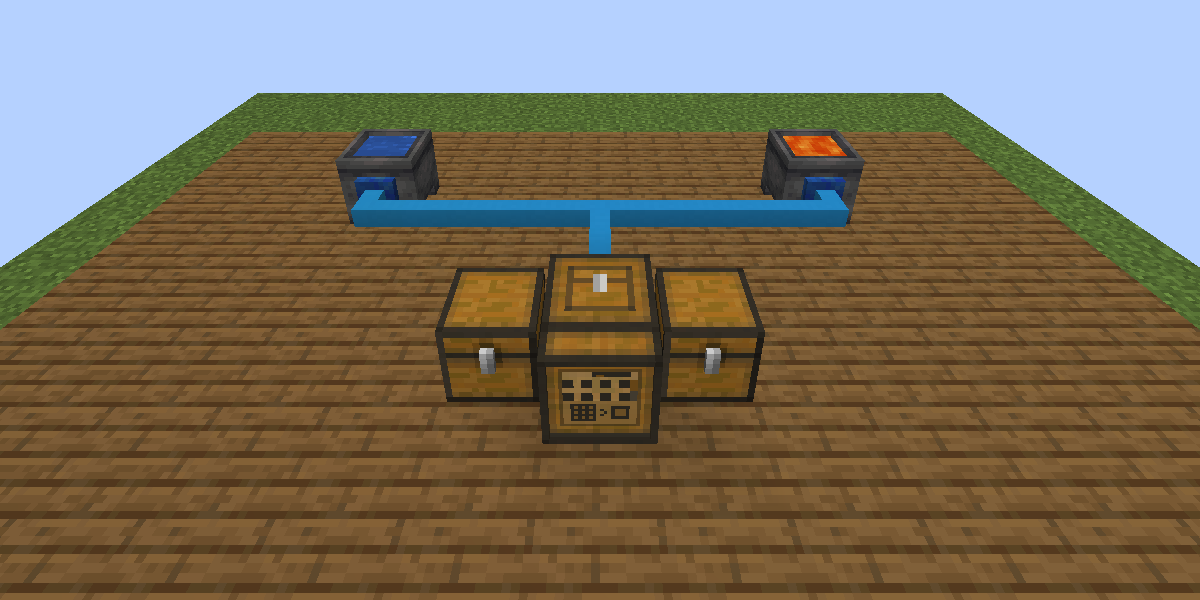
What you need
Install Tom's Simple Storage and the Siphon file that matches your exact Minecraft version and loader, on both the client and the server. Siphon adds four items:

For the basic setup you only need a Fluid Cable Connector and some Basic Fluid Cable. All four items are in the Siphon Creative tab, and all of them can be crafted in Survival:
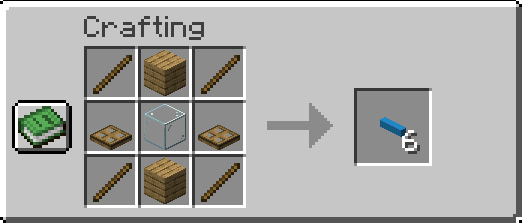
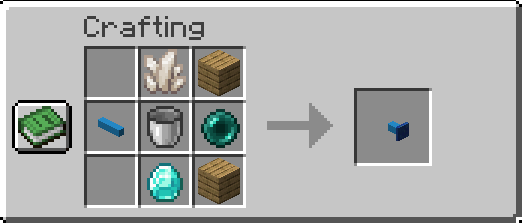
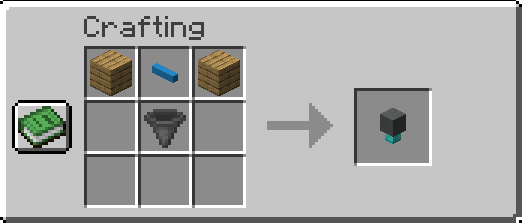
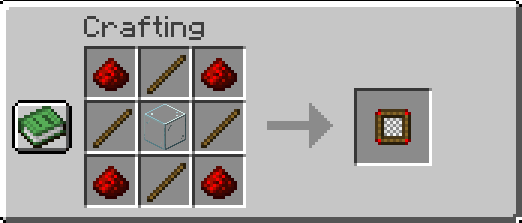
The recipes unlock in the recipe book once you pick up a glass block (cable and filter) and then Basic Fluid Cable (connector and hopper).
Put the fluid in a container
Siphon reads fluids that are stored in a block, not fluids flowing loose in the world. Good containers are:
- Vanilla cauldrons with water or lava. A full cauldron holds 1,000 mB, the same as one bucket.
- Tanks from other mods that use the loader's standard fluid storage. Mekanism fluid tanks, Functional Storage fluid drawers and Immersive Engineering metal barrels have all been tested.
Lava pools and lava source blocks will not show up, and neither will lava buckets sitting in a chest. Pour the lava into a cauldron or a tank first.
Attach a Fluid Cable Connector
Place a Fluid Cable Connector against the cauldron or tank by clicking on the container, the same way you would place Tom's Inventory Cable Connector against a chest. Any face works: side, top or bottom. The blue plate must face the container.
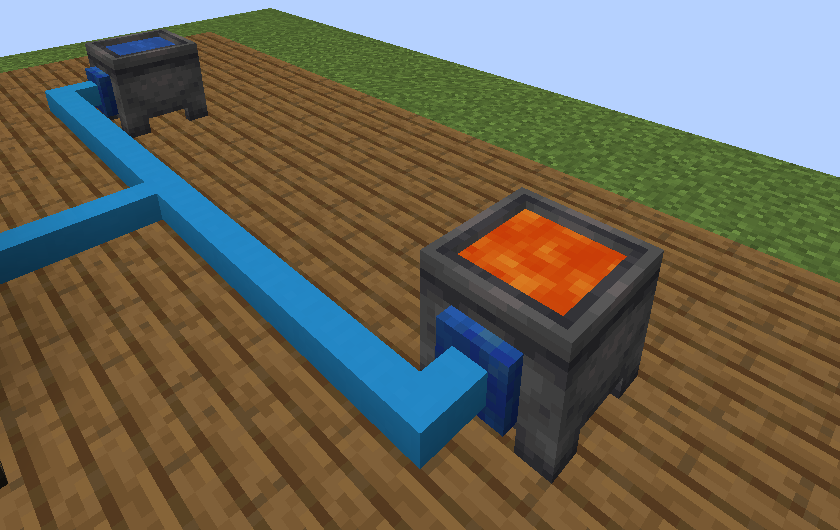
Use Siphon's Fluid Cable Connector, not Tom's connectors. Tom's Inventory Connector and Inventory Cable Connector only handle items, so a cauldron placed next to them will never appear in the Fluids view.
Some modded tanks only let fluid in or out through certain faces. Immersive Engineering barrels, for example, use one face for filling and another for emptying, so give them a connector on each face. If a tank isn't picked up, try a different face, or set the side with the Inventory Configurator (see step 7).
Cable it into your storage network
Run Basic Fluid Cable from the connector to your existing Tom's network. Siphon's cable joins Tom's network just like Tom's own Inventory Cable, and the two can be mixed freely. Connect it to any of these:
- the back of a Storage Terminal or Crafting Terminal,
- the Inventory Connector your terminal is attached to,
- Tom's Inventory Cable, Framed Inventory Cable or an Inventory Interface that is already part of the network.
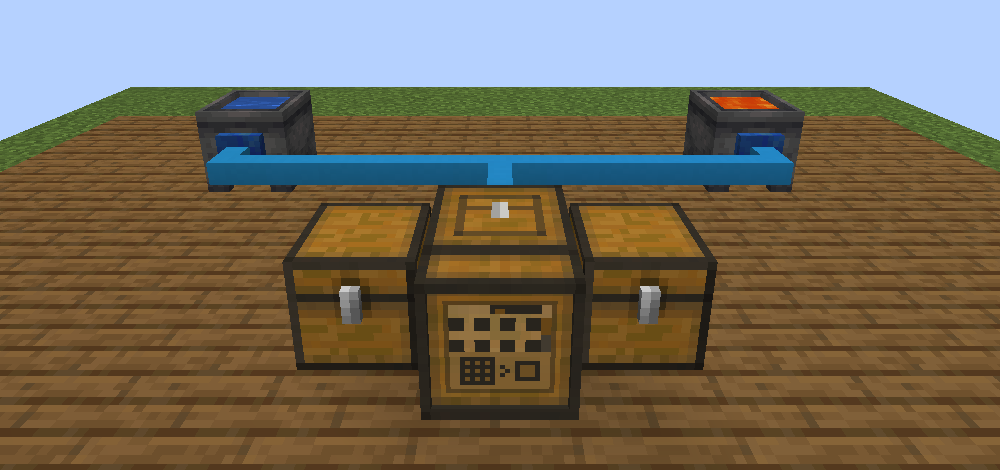
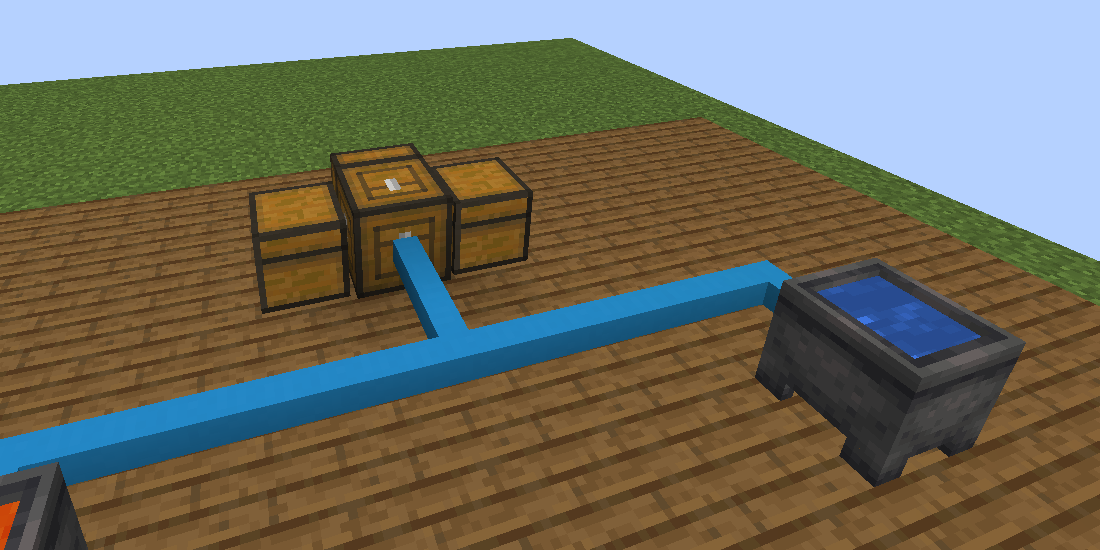
Is your terminal stuck straight onto a chest? Tom's lets you do that for items, but Siphon can't find fluids through a chest, Inventory Trim or Inventory Proxy. Put an Inventory Connector (or a piece of cable) behind the terminal and run the fluid cable into that.
A Fluid Hopper or Tom's Inventory Hopper placed in the middle of a cable run splits it into two separate networks, so keep hoppers off the cable path between your tanks and the terminal. Wireless terminals work too, as long as they would normally reach this network.
Open the Fluids view
Open the terminal as usual. It starts on the normal item list. Fluids never appear in the item grid; click the Fluids button on the right-hand side of the window to switch views.
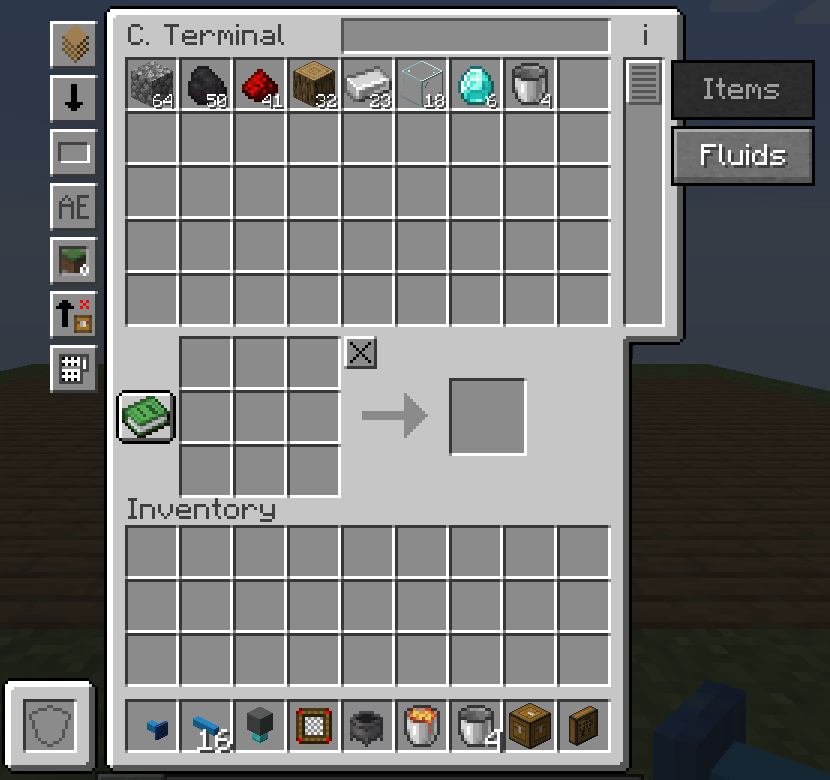
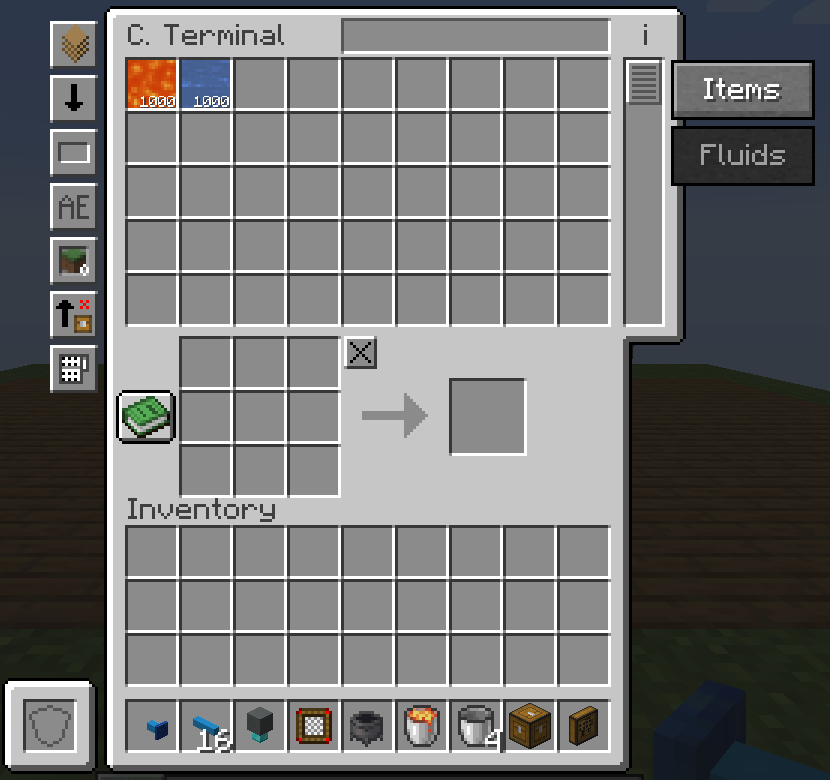
Amounts are in millibuckets (mB); hover an entry to see its name and amount. The search box filters fluids by name, just like items.
Using JEI, EMI or REI? Their item list also sits on the right of the screen and can cover the Items and Fluids buttons. Hide the list for a moment (Ctrl + O in JEI), or lower GUI Scale in Video Settings.
Fill and empty buckets
Take fluid out
- Pick up an empty bucket so it is on your cursor, then click the fluid you want, or
- keep an empty bucket anywhere in your inventory and click the fluid with an empty cursor.
You get a filled bucket and the fluid is removed from the cauldron or tank it came from.
Put fluid in
Pick up a filled bucket (or another filled fluid container) on your cursor and click anywhere in the fluid grid, including an empty slot. The fluid goes into a connected container that has room for it.
A bucket always moves exactly 1,000 mB. A cauldron that is only partly full of water (333 or 666 mB) can't fill a bucket on its own. The fluid stays in the real cauldrons and tanks; Siphon never stores it anywhere else.
Crafting with fluids
The crafting grid doesn't take fluid straight from the network. For a recipe that needs a lava or water bucket, fill a bucket from the Fluids view first, then craft with it.
Right-clicking a connector with a bucket does nothing on purpose. Always choose the fluid in the terminal.
Optional: hoppers and filters
Fluid Hopper
The Fluid Hopper pumps up to 1,000 mB every eight ticks from its wide end towards its small blue nozzle. It works in all six directions, between tanks, cauldrons and cable networks. A redstone signal pauses it. To pull fluid out of a network, the hopper needs a Fluid Filter installed so it knows which fluid to take.
Fluid Filter
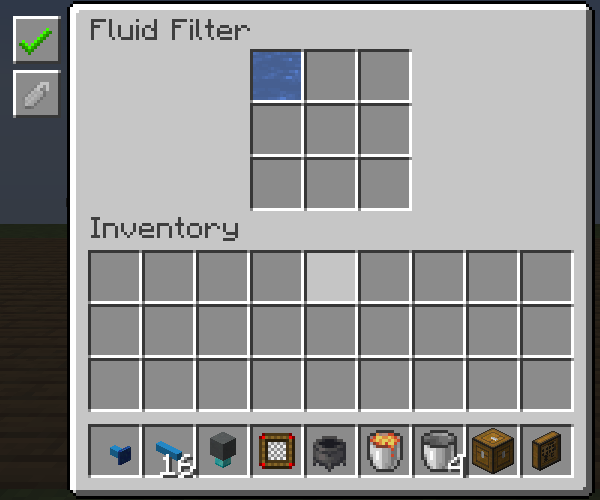
Right-click a Fluid Filter to open Tom's familiar nine-slot filter editor. Click the slots with filled buckets or other filled fluid containers (or shift-click them from your inventory) to copy their fluid; the containers are not used up. Choose allow or deny mode as usual.
Inventory Configurator
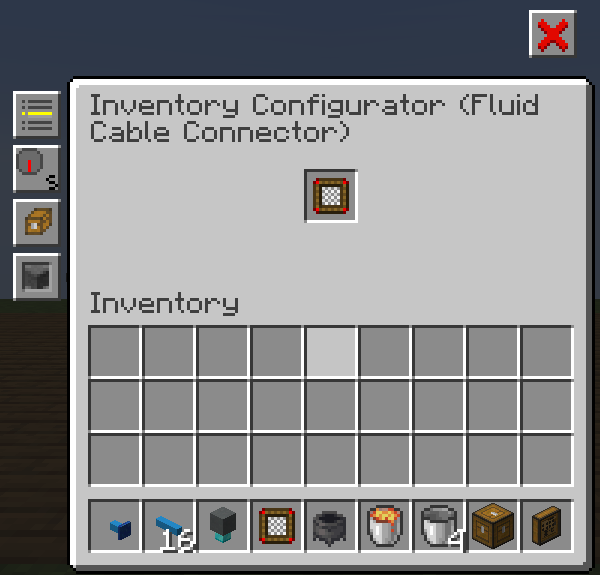
Right-click a Fluid Cable Connector or Fluid Hopper with Tom's Inventory Configurator to install a filter in its slot. Right-click the installed filter to edit it. The other buttons are:
- Priority (connectors only): which tanks are filled and emptied first.
- Side: which face of the tank to use. On a hopper, this is the face of the tank at the nozzle end.
- Skip: switches the connector or hopper off without breaking it.
- Keep last: always leaves one bucket (1,000 mB) of each fluid in that tank. A single full cauldron with keep last on can't be emptied at all.
Fluid not showing up?
Work down this list. Most problems are one of the first five.
- Check the Fluids view. Fluids are only listed after you click Fluids; they never appear in the item grid. If you can't see the button, JEI, EMI or REI may be covering it (see step 5).
- Check the container. The fluid must be in a cauldron or a tank. Lava source blocks, pools and lava buckets in a chest are not read.
- Check the connector type. It must be Siphon's Fluid Cable Connector. Tom's Inventory Connector and Inventory Cable Connector only see items.
- Check which way the connector faces. The blue plate must touch the cauldron or tank. If it faces the cable instead, break it and place it again by clicking on the container.
- Check what the terminal is attached to. If it sits straight on a chest, Inventory Trim or Inventory Proxy, fluids can't reach it. Mount it on an Inventory Connector or cable instead (see step 4).
- Ask the connector. Right-click a Fluid Cable Connector with an empty hand. A message above your hotbar shows every tank on its cable network and how much they hold, for example
Siphon: 2 tanks, 2000 / 2000 mB. To test one connector on its own, break the cable next to it for a moment: if it then shows 0 tanks, it isn't reaching its container. If the connector sees your tanks but the terminal doesn't, the cable doesn't reach the terminal's network. - Check the Inventory Configurator settings. Skip hides a connector completely. A Fluid Filter in deny mode, or an allow filter set to a different fluid, hides that fluid. On sided modded tanks, try a different Side.
- Check the cable path. A hopper placed in the middle of the cable splits the network, and tanks in unloaded chunks are left out until the chunk loads again.
- Check the versions. Use the Siphon file made for your exact Minecraft version and loader, with the Tom's Simple Storage version given in that file's changelog. Install both on the client and the server.
Still stuck? Leave a comment on the CurseForge page with your Minecraft version, loader (NeoForge, Forge, Fabric or Quilt), the Siphon and Tom's Simple Storage versions, and a screenshot of your setup.